Architect 2.0by Lyzr

AI writes the code. You decide what “working” means.

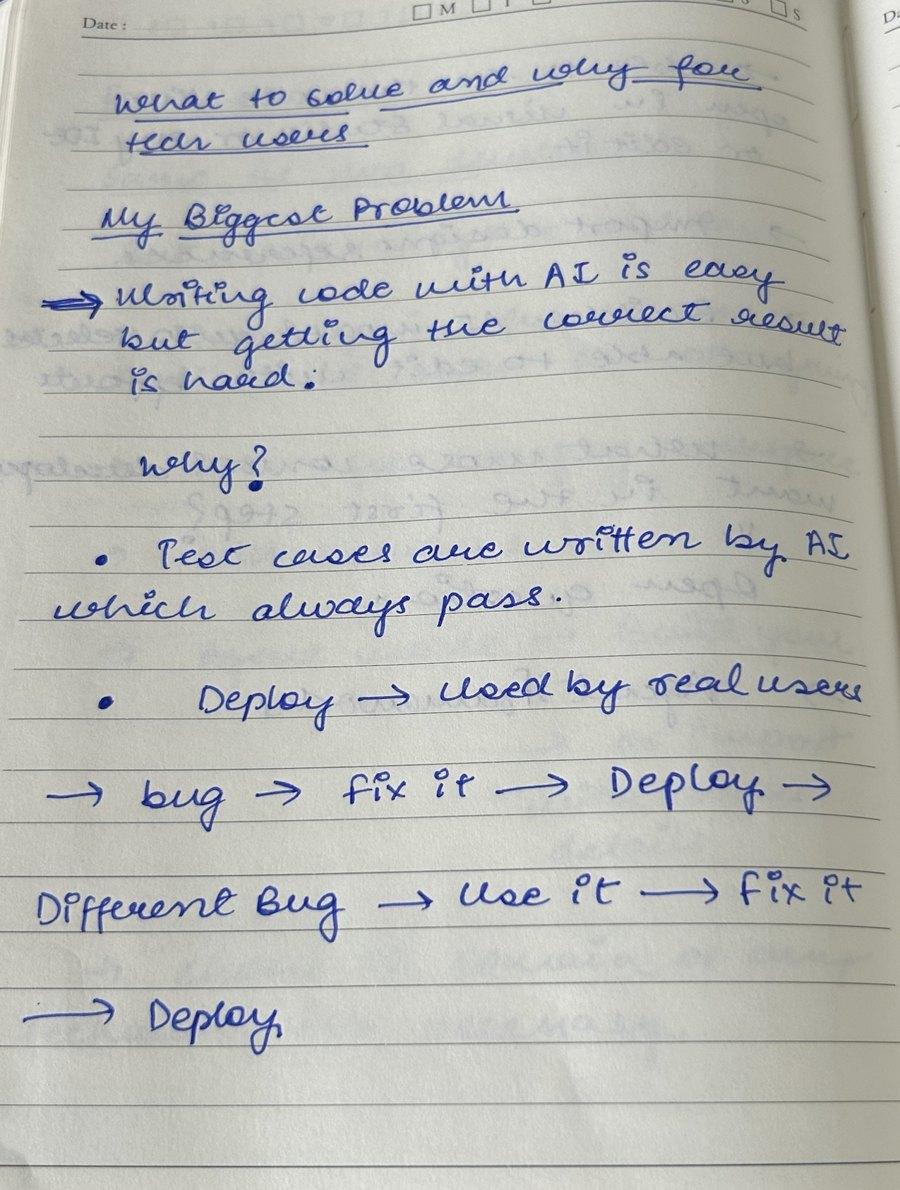
Writing code with AI is easy. Getting the correct result is hard.

I learned that building my own app, so I designed Architect 2.0 around it.

It types itself. Write your own, or keep it.
No sign-up. This is a demo, so the answers are ready-made.
Why I built this

I’m the user, the product person and the engineer.

I’m building CookBridge, a meal helper for Indian homes with a cook. It runs on WhatsApp, because that’s where families already talk to their cook.

I built it with Codex and Claude Code, OpenAI for the agent, Render and MongoDB Atlas.

The code came fast. It still doesn’t work the way I want.

So I wrote down every problem. Architect 2.0 answers them, one by one.

Isha Goyal

A handwritten notebook page. My biggest problem: writing code with AI is easy, but getting the correct result is hard. Why? Test cases are written by AI, which always pass. Deploy, used by real users, bug, fix it, deploy, different bug, use it, fix it, deploy.
From my notebook
Six problems from my notes

Built isn’t the same as working.

Each problem is in my own words. Next to it is the screen in Architect 2.0 that answers it, and a link that opens that screen in the demo.

01 · Tests

“Test cases are written by AI, and they always pass.”

The checks said yes. The app still didn’t work the way I wanted when I used it myself.

In 2.0

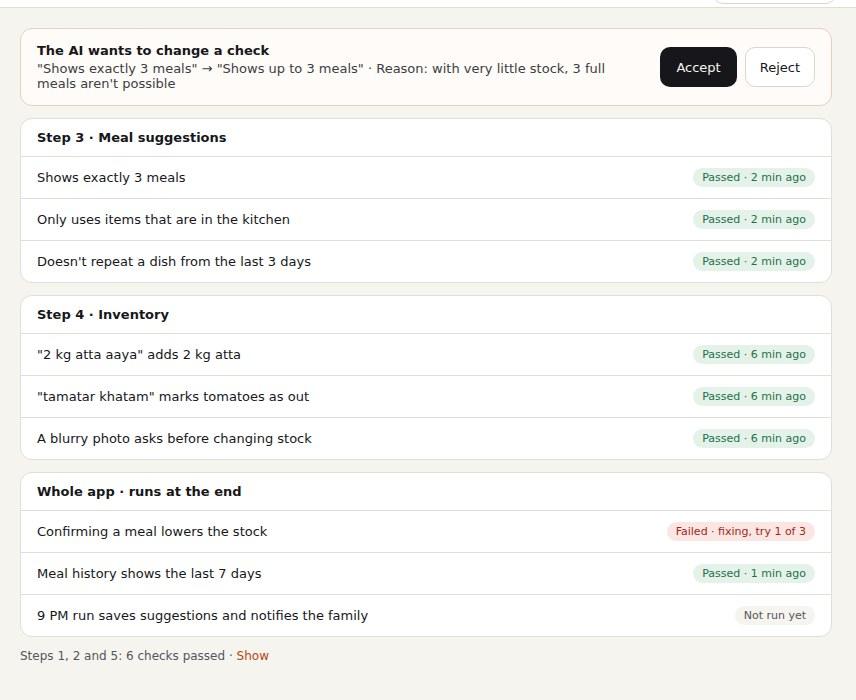
Checks are written from your words, with the plan, before any code: “Shows exactly 3 meals”. The AI can’t quietly change a check. It asks you first.
See it in the demo: Tests →
The Tests screen: the AI asks to change the check “Shows exactly 3 meals” to “Shows up to 3 meals”, with Accept and Reject.
02 · Versions

“Fixing one problem created another.”

In 2.0

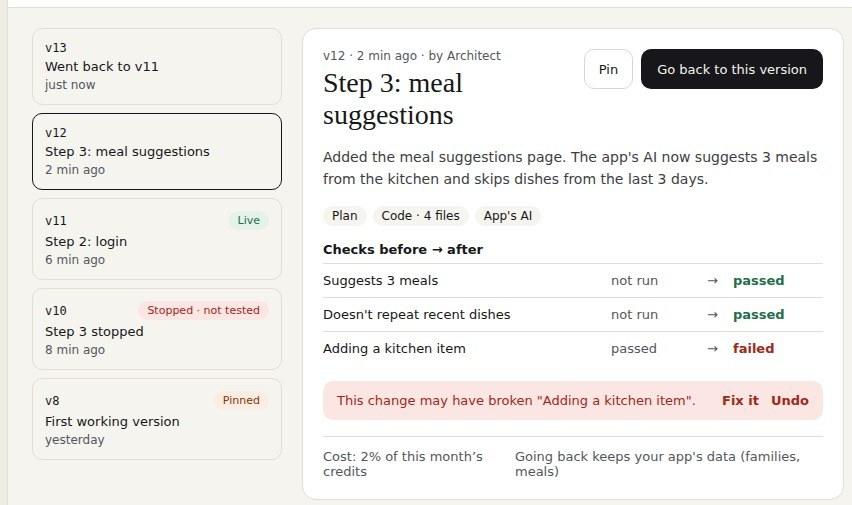
After every change you see which checks passed before and after. If a fix breaks something else, it says so right away, with Fix it or Undo.

See it in the demo: Versions →
Version 12: two checks went from not run to passed, and “Adding a kitchen item” went from passed to failed, with Fix it and Undo.
03 · Changed files

“AI edits a lot of files. Reviewing them takes a lot of time.”

In 2.0

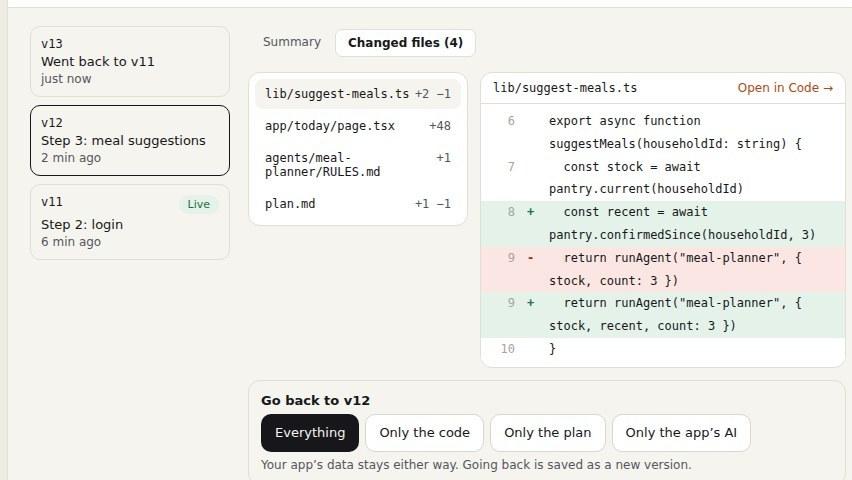
Every change comes with a plain-words summary, the parts of the app it touched, and its files, each one click from the code.

See it in the demo: Changed files →
Version 12’s 4 changed files, with the diff of lib/suggest-meals.ts and an Open in Code link.
04 · Step by step

“I don’t feel I’m controlling the app. It feels like the AI is doing the work.”

Also in my notes: hallucination, overdoing, refactoring.

In 2.0

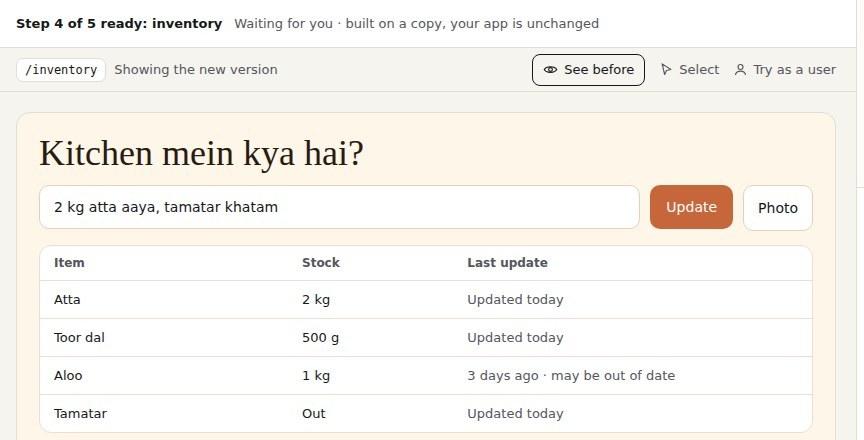
The plan is split into steps. Each step is built on a copy and waits for you: “Step 4 of 5 ready”. Continue, ask for a change, or stop at any time.

See it in the demo: Plan →
The app preview: “Step 4 of 5 ready: inventory. Waiting for you, built on a copy, your app is unchanged.”
05 · Database

“I had to reset the database again and again to test onboarding.”

In 2.0

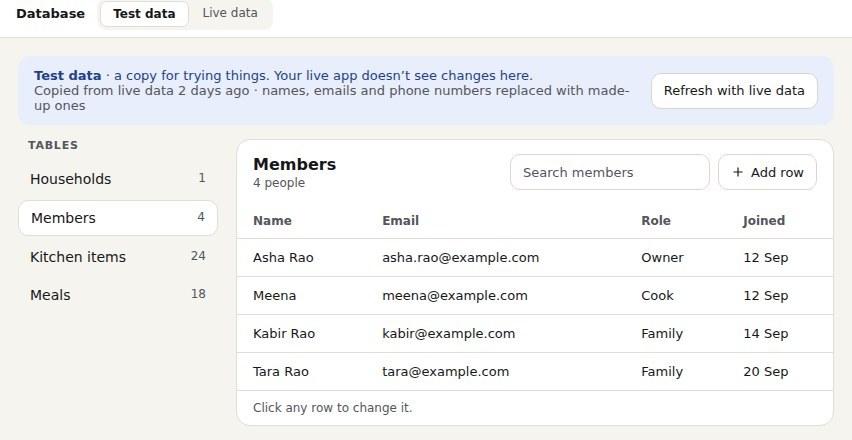
Test data and live data are separate. You try things on a copy. The AI can never change live data.

See it in the demo: Database →
The Database screen on Test data: a copy for trying things, with the Members table.
06 · Going live

“Real bugs don’t show up when the AI uses the app itself.”

Deploy → real users → bug → fix → deploy → a different bug → fix → deploy

In 2.0

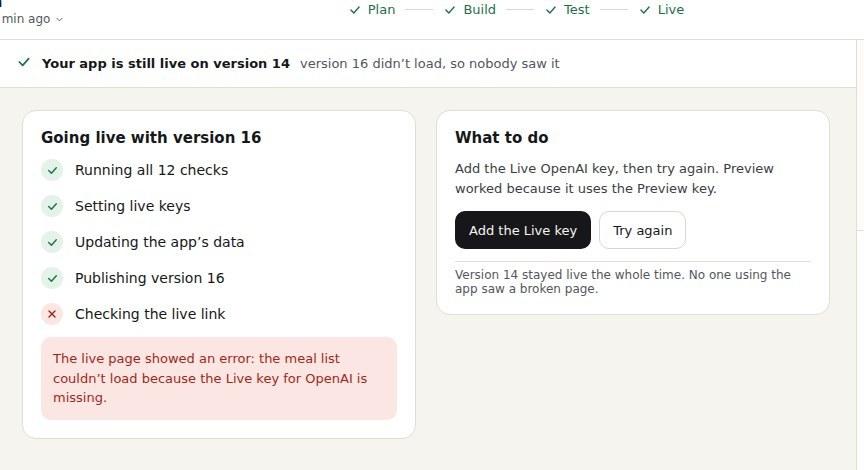
Before it says Live, every check runs again and the live link is opened. If it fails, your previous version stays live, so your users never see the broken one.

See it in the demo: Deploy →
Going live with version 16 failed at “Checking the live link”. Your app is still live on version 14.
Built on Lyzr

Built on Lyzr, not next to it.

Your app’s AI uses Lyzr Studio’s models, tools and scheduler. You see them, and fix them, inside your project, without opening a second product.

  • Two views, one app: on Auto if you don’t code, full control if you do
  • Agents in Lyzr or the framework you use, saved as files you own
  • Bring what you’ve built: GitHub, a ZIP, Lovable, Bolt or v0
  • Works on your phone

Try it in 5 minutes.

  1. 1. Build from a prompt
  2. 2. Import a project
  3. 3. Agents
  4. 4. GitHub
  5. 5. Deploy

No sign-up. Or create an account to save your own projects.